This tutorial shows you how to make a flow from start to finish.
A flow is a checklist for one kind of application. It tells Ziffa:
- which documents to ask for;
- when each document is needed;
- which facts must match across the documents; and
- what to do when something is missing or does not match.
Think of a flow like reviewing a single work permit application. The steps say which documents to collect, such as a passport and work contract. Profile variables answer simple questions such as “Is the applicant still abroad?”. Cross-document checks make sure key details, such as the applicant's name and job title, agree across the documents. The manifest is the final checklist for that application.
What you will make
We will make a small New Employee Application flow. It will:
- always ask for a passport;
- ask whether the applicant needs accommodation;
- ask for an accommodation document only when the answer is Yes;
- compare the applicant's name on the passport and employment contract; and
- show the finished document list in the Manifest Preview.
Before you start, the document requirements and their accepted document types must already exist. If a requirement is missing from the Document requirement list, ask an administrator to add it.
1. Create the empty flow
- Open Flows from the left menu.
- Select New Flow.
- In Name, enter
New Employee Application. - In Description, enter
Documents needed for a new employee. - Leave Active selected.
- Select Create.
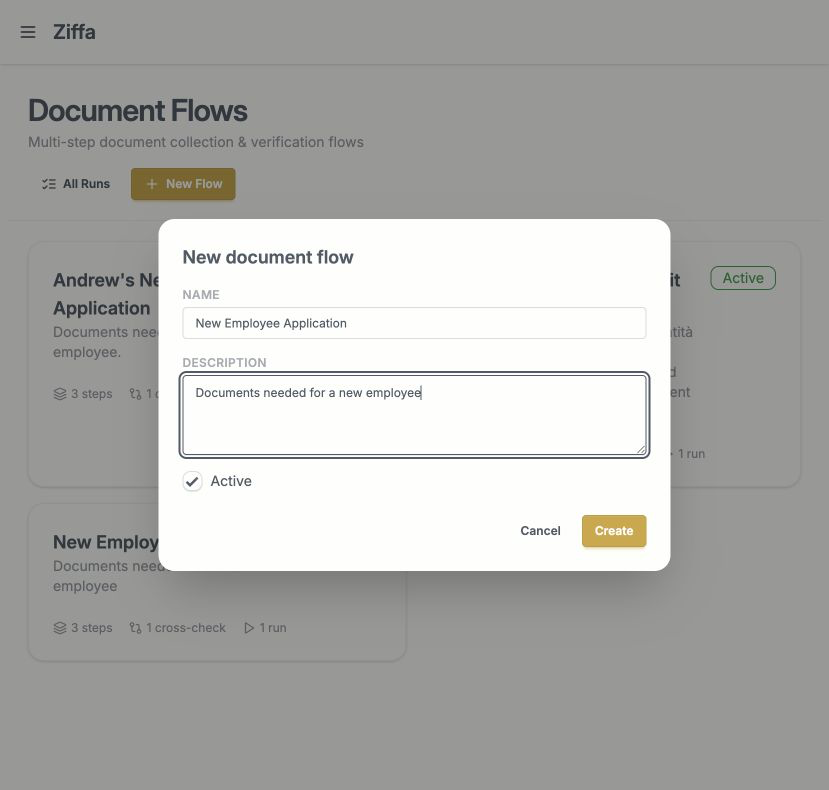
The name tells people what the flow is for. The description gives them one short explanation.
You now see an empty flow builder. It has four work areas: Steps, Profile Variables, Cross-Document Checks, and Manifest Preview.
The new-flow options mean:
| Option | Simple meaning |
|---|---|
| Name | The short title people see. |
| Description | A sentence that says what the flow is for. |
| Active | Selected means the flow is ready to use. Clear it while you are still building or when the flow should no longer be used. |
2. Add the always-needed steps
What is a step?
A step is one item on the document checklist. For example, “Passport” can be one step and “Employment Contract” can be another.
A step points to a document requirement. The requirement is the box that must be filled. It can accept one or more document types. This means a person does not always need to upload one exact file type; any accepted type can fill that box.
Add the Passport step
- In Steps, select Add Step.
- Choose the Passport document requirement.
- Enter
10for Order. - Enter
Identityfor Bundle. - Keep Core step selected.
- Set If required document is missing to Send back.
- Leave Required when and Defer when empty.
- Leave Depends on empty.
- Add any helpful Reviewer notes, such as
Check that the passport is not expired. - Select Add step.
Repeat these actions for Employment Contract. Use order 20 and bundle
Employment.
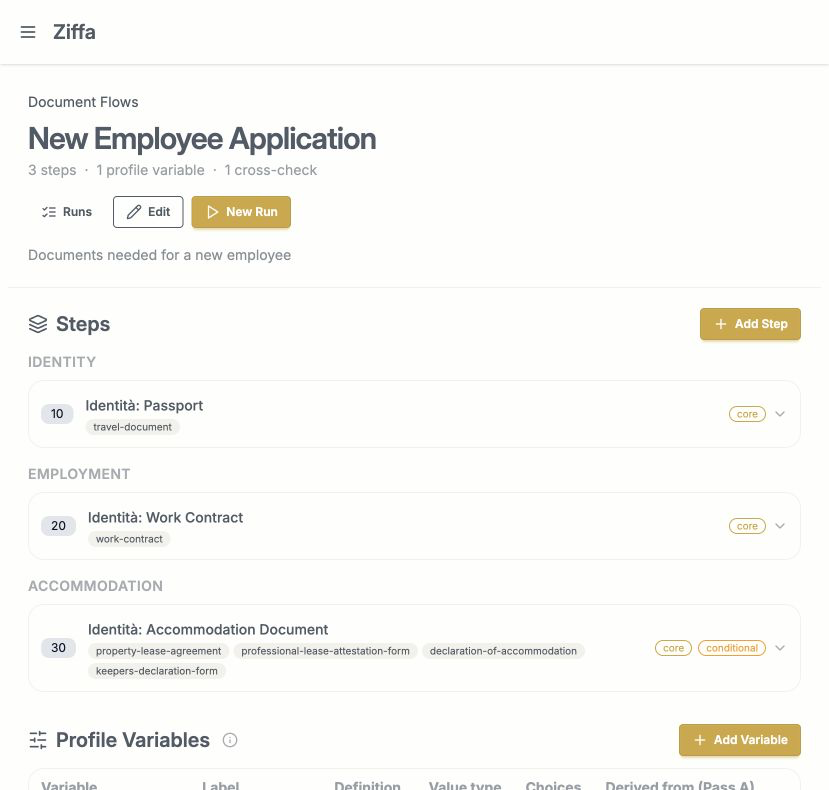
The finished flow uses clear bundles and leaves gaps between order numbers so another step can be inserted later.
Here is what every step option means:
| Option | Simple meaning |
|---|---|
| Document requirement | The checklist box this step fills. Any document type accepted by the requirement can fill it. |
| Order | Where the step appears. Smaller numbers come first. Using 10, 20, 30 leaves room to add a step later. |
| Bundle | A label that groups similar steps, such as Identity or Employment. It does not change the rules. |
| Core step | A core step normally belongs in every manifest. A condition can still exclude it. If its condition cannot be answered yet, it stays required. |
| If required document is missing | The suggested action: Proceed, Send back, Flag to officer, or Recommend rejection. |
| Required when | A rule that decides when the step is needed. Leave it empty when the step is always needed. |
| Defer when | A rule that says a missing document may arrive later. Leave it empty when the step can never be deferred. |
| Depends on | Steps that should come first. Use this when this step cannot be handled before another step. |
| Reviewer notes | Helpful checking instructions shown to the reviewer on the run manifest. |
Note
A missing-document action is a recommendation for the run. It does not add or remove the step from the manifest. Required when controls that.
3. Add a profile variable
What is a profile variable?
A profile variable is one small fact about an application. It is like a labelled answer card:
needs_accommodation = yes
The flow reads this answer to choose the right steps. Without profile variables, Ziffa cannot know that one applicant needs a lease while another applicant does not.
Profile variables are useful for facts such as:
needs_accommodation— Yes or No;job_category— one choice from a list; orspecial_note— free text.
Create needs_accommodation
- In Profile Variables, select Add Variable.
- Set Label to
Needs accommodation. - Set Name (slug) to
needs_accommodation. - Set Type to Yes / No.
- Leave Auto-derive from an extracted document field set to manual only.
- In Description, enter
Does this applicant need an accommodation document?. - Select Add variable.
The variable options mean:
| Option | Simple meaning |
|---|---|
| Label | The friendly question people see. |
| Name (slug) | The short machine name used by rules. Use lowercase words joined with underscores, such as job_category. |
| Yes / No | Use this for a two-answer question. |
| Choice | Use this when people must choose from a list. Add one value \| Readable label per line. Rules use the value on the left. |
| Free text | Use this when the answer can be typed freely. |
| Document type + Field | Optional. Ziffa can fill the answer from a field extracted from an uploaded document instead of relying on a manual answer. The document type must already be accepted by a step in this flow. |
| Description | A short note that explains the fact to teammates. |
For a Choice variable, the choices can look like this:
full_time | Full-time
part_time | Part-time
temporary | Temporary
The person sees “Full-time”, but a condition uses full_time.
4. Add a step that uses the answer
Now make the accommodation document appear only when it is needed.
- In Steps, select Add Step.
- Choose the Accommodation Document document requirement.
- Enter
30for Order andAccommodationfor Bundle. - Keep Core step selected. The condition will still exclude the step when the answer is No.
- In Required when, select add condition row.
- Choose Needs accommodation.
- Choose is yes.
- Leave Defer when empty.
- Select Add step.
The condition choices are:
| Choice | Meaning |
|---|---|
| is | The answer equals one value. |
| is not | The answer does not equal one value. |
| is one of | The answer equals any value in a comma-separated list. |
| is yes | A Yes / No answer is Yes. |
| is no | A Yes / No answer is No. |
| is answered | Any non-empty answer exists. |
If you add more than one condition row, choose ALL of when every row must be true. Choose ANY of when only one row must be true.
5. Add a cross-document check
What is a cross-document check?
A cross-document check asks, “Do these documents tell the same story?”
For example, the passport might say Maya Borg and the employment contract
might also say Maya Borg. The check compares the extracted name fields and
reports when they do not agree.
Create the check
- In Cross-Document Checks, select Add Check.
- Enter a short unique Key, such as
K01. - Enter the Name
Applicant name matches. - Choose Fuzzy for Match type so small formatting differences can be handled.
- Choose Flag for Severity.
- Choose Flag to officer for Mismatch action.
- Add a plain description, such as
Compare the applicant name on the passport and contract. - Add an SOP reference if your procedure has one.
- Select Add check.
The check exists, but it does not yet know which fields to compare.
Attach the fields
- Open the new
K01check. - Open Add field set.
- Choose the passport Document type.
- Choose the field or fields that form the name. For example, select
first_nameandlast_name. - Select Add field set.
- Add another field set for the employment contract and choose its employee name field or fields.
Use one field set per document type. When you choose more than one field in a set, Ziffa joins them to make one value, such as first name plus last name.
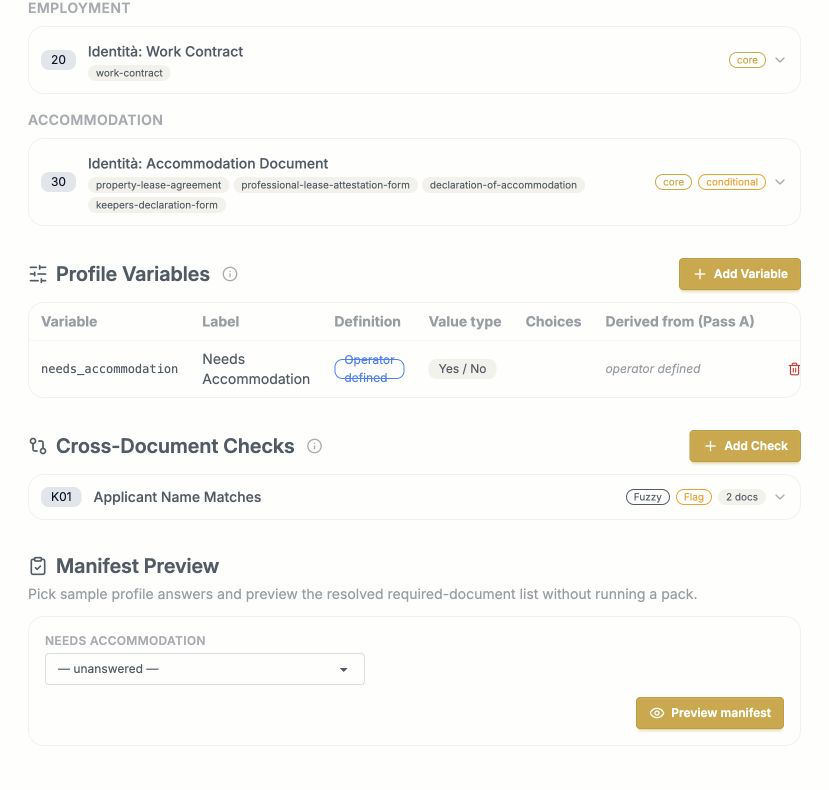
The flow now has one Yes / No answer, one two-document name check, and a place to preview the resulting manifest.
Select reference only when one value is the target that the others must cover. The common example is a date range: the required stay is the reference, and an insurance policy must cover it. A normal name check does not need a reference.
The cross-check options mean:
| Option | Simple meaning |
|---|---|
| Key | A short, unique label such as K01. It helps people find the check. |
| Name | A friendly title that says what must match. |
| Exact | Values must be equal after simple cleanup such as letter case and spacing. |
| Fuzzy | Allows small differences. Unclear cases can be sent for smarter or human review. |
| Range (period covers) | Date fields must show that the non-reference period covers the reference period. |
| Signature | Marks the signature comparison for human review. |
| External system | Marks a check that must be verified in another system. |
| Severity: Block | A mismatch blocks normal completion and needs attention. |
| Severity: Flag | A mismatch is shown to a reviewer without being a blocking rule. |
| Mismatch action | The suggested outcome: Proceed, Send back, Flag to officer, or Recommend rejection. |
| Description | A plain sentence explaining the check. |
| SOP reference | The policy or procedure section behind the check. |
| Active | Only active checks run. You can turn a saved check off while keeping its setup. |
Tip
A useful comparison needs fields from at least two documents. If fewer than two documents provide a value, there is nothing to compare yet.
6. Read the Manifest Preview
What is a manifest?
The manifest is the document list made for one set of profile answers. It is the flow's answer to, “What does this person need?”
The Manifest Preview is a safe practice area. It lets you try answers and see the list without creating or processing a real application pack.
Try both answers
- Find Manifest Preview at the bottom of the flow.
- Set Needs accommodation to Yes.
- Select Preview manifest.
- Check that Passport, Employment Contract, and Accommodation Document are Required.
- Change Needs accommodation to No and preview again.
- Check that Accommodation Document is now Not required.
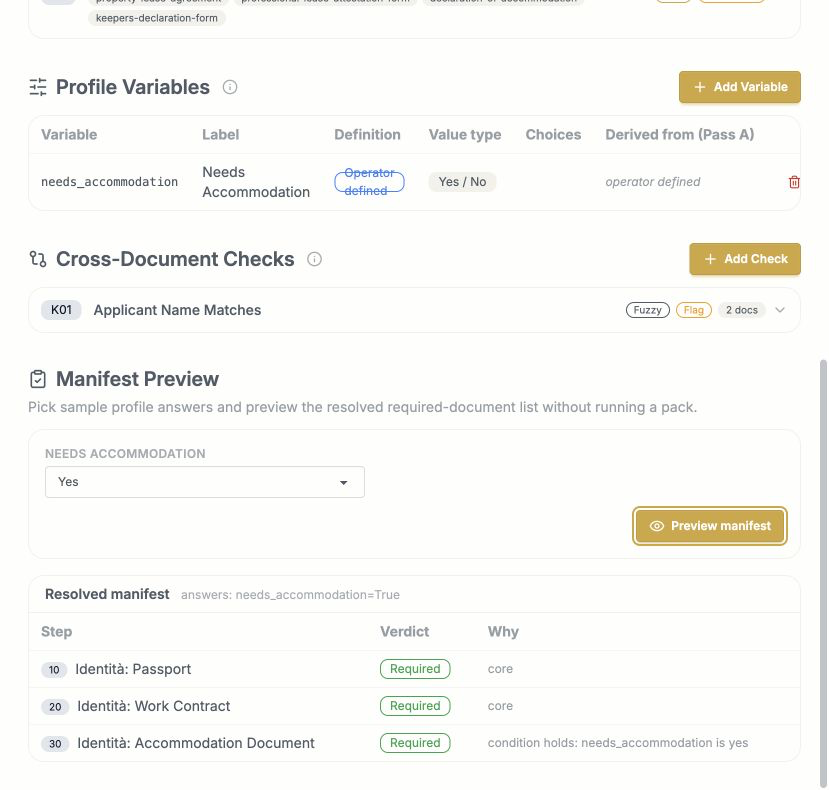
The answer is shown as needs_accommodation=True. The Why column explains
why each document is required.
The preview shows the answers used and one row for each step. Each item means:
| Item | Meaning |
|---|---|
| Answers | The sample profile values used to make this preview. none means no answer was supplied. |
| Step number | The step's order number. |
| Step name | The document requirement being tested. |
| Required | This document belongs in the manifest. |
| Required · deferrable | The document is required, but its defer rule says it may arrive later. |
| Not required | The step's rule does not match these answers. |
| Undecided | Ziffa needs a profile answer before it can decide. |
| Why | The reason for the verdict: a core step, a rule that matched, a rule that did not match, or a rule waiting for an answer. |
The preview tells you what should be requested. It does not tell you whether a real applicant has uploaded the files, whether extraction succeeded, or whether the cross-document checks passed. Those things happen during a run.
7. Final check
Your flow is ready to test when all of these are true:
- the name and description clearly say what the flow is for;
- every always-needed document has a core step;
- every special case has a profile variable and a matching condition;
- every cross-document check has field sets from at least two document types;
- Manifest Preview shows the expected list for Yes, No, and unanswered profile values; and
- Active is selected when the flow is ready for people to use.
When the preview looks right, select New Run to test the flow with a real application pack.
Next tutorial
Ready for an example based on the Vetting SOP? Continue with Build an advanced NIDMS identity check.